Mosaic Tile Floor - Substance Material
In researching Roman mosaics, it was obvious I needed a way to distribute tiles along a curve. I concluded that I needed to author the textures in a 3d app.
For the swirly patterns and the face: I just made a simple plane, then used the Clone modifier (buy it.. trust me) to specify how many tiles I needed along the proceeding Path Deform (WSM) modifier. I drew a spine that roughly matched the curvature of the swirly helix pattern, bound the set of planes to the spline path, then adjusted the spacing in the Clone modifier so it would fit. Step Build was heavily used to make the tiles for the face. It's the best way!
Bring in the textures to SD, disable vertical tiling, then tile the texture 4-6 times. A tiling band will result, which you can then move into position to the top of the texture. Then copying, rotating, and blending the patterns together so they form a seamless square trim.
The RGBA maps are so I can color it however I wanted in SD by using Color to Mask


Top two images made in 3DSMax, then brought into Designer to make the bottom.
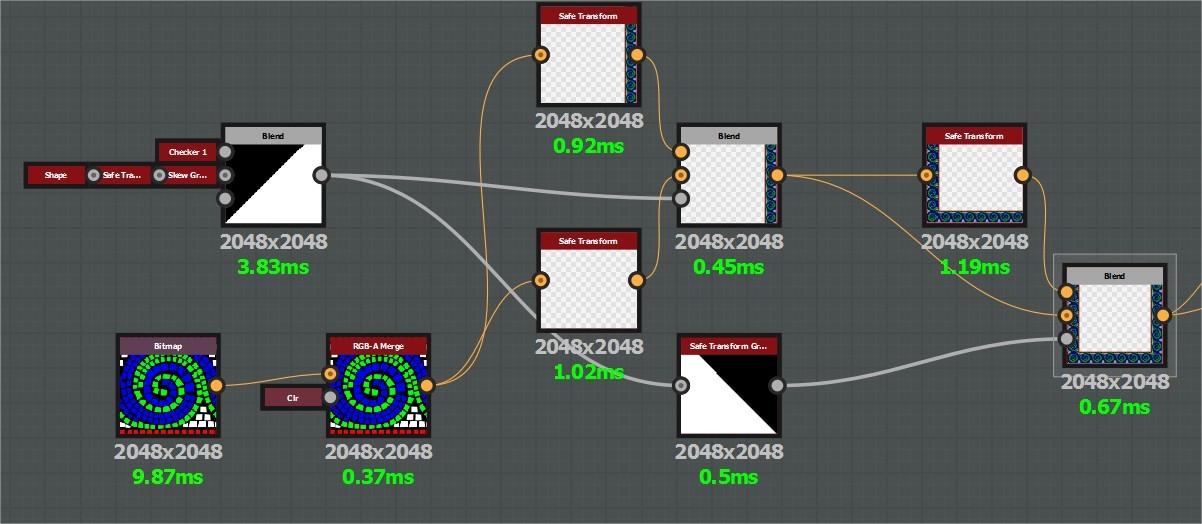
Make a tiling horizontal and vertical strip by disabling vertical tiling on the source image, then blend them using a diagonal B&W map

Simple diagonal blend map. The checker was added to the Skew Greyscale to fill in the gaps.

A quarter of the ring was a texture. I tiled it, then used Symmetry Slice to quickly get the symmetrical layout I needed.

Then a ton of Splatter Circular nodes were blended in to get the circular-arranged mosaic tiles. Make sure they vary in value so you can create a height map, or select random ones, later.

What the greyscale mask looked like up to this point.

The pointy tile layout was also done in 3DSMax. A mask of the layout was rendered so I can be placed within the final texture. Splatter Circular was used to dictate the position. The Edge Detect expanded the white mask to create a buffer for the grout.

The Pointy tiles blended in.. Notice the black grout buffer around them. That's what the Edge Detect did.

The face tile layout was done in 3DSMax using Step Build while looking at reference imagery. The uniform tile layout behind the face was just a Tile Sampler node of squares.

A custom node was created to color an RGBA image using any 4 colors using the Color to Mask node. This is how the mosaic images made in 3DSMax were colored in Designer. You would feed the RGBA masks I made into this node with those 4 colors.

Blending everything together, adding in some subtle grunge, and we have an albedo.

The normal was made by blurring the interior pixels of tile tiles so there would be a subtle beveling.

To get that effect, I shrank the greyscale map to 128, blurred it at full res, then blended the original mask with that using the Darken blendmode.

The result gives you mosaic tiles with some pillowness, but not on the edges. After this, a levels node was added to adjust the profile curve so it wasn't so pillowy.

The roughness is the inverse of the heightmap with a levels adjustment and some grunge added in. Some more work is needed here, especially in the roughest areas.